> ## Documentation Index
> Fetch the complete documentation index at: https://docs.firstpromoter.com/llms.txt
> Use this file to discover all available pages before exploring further.
# Google Tag Manager
> Setting up your Main tracking script in Google Tag Manager (GTM)
`Difficulty: Intermediate`
`Developer Required: Yes`
With FirstPromoter you can setup click and signup tracking using our Google Tag Manager option.
This setup mainly requires you to add tracking scripts into your Google Tag Manager and sending details about the referrals using the script.
Depending on the complexity of your website it is ideal to have a developer assist you in the setup.
This procedure assumes you have already set up GTM to work on your website.
1. To get started on FirstPromoter:
* [Login](https://login.firstpromoter.com/) to your admin account.
* Navigate to Settings > Integrations > Integrate your website section of your dashboard.
* Click on the `Integrate` button.
* Click on the `setup` button or click on the `change` link for a new setup instructions.
* Under `Custom integration`, select the `JS` option.
* Copy the `Main tracking script` under the `JavaScript` tab.
2. Log in to Google Tag Manager:
* Navigate to your `Tags` section
* Click on `New` button (at top right corner)
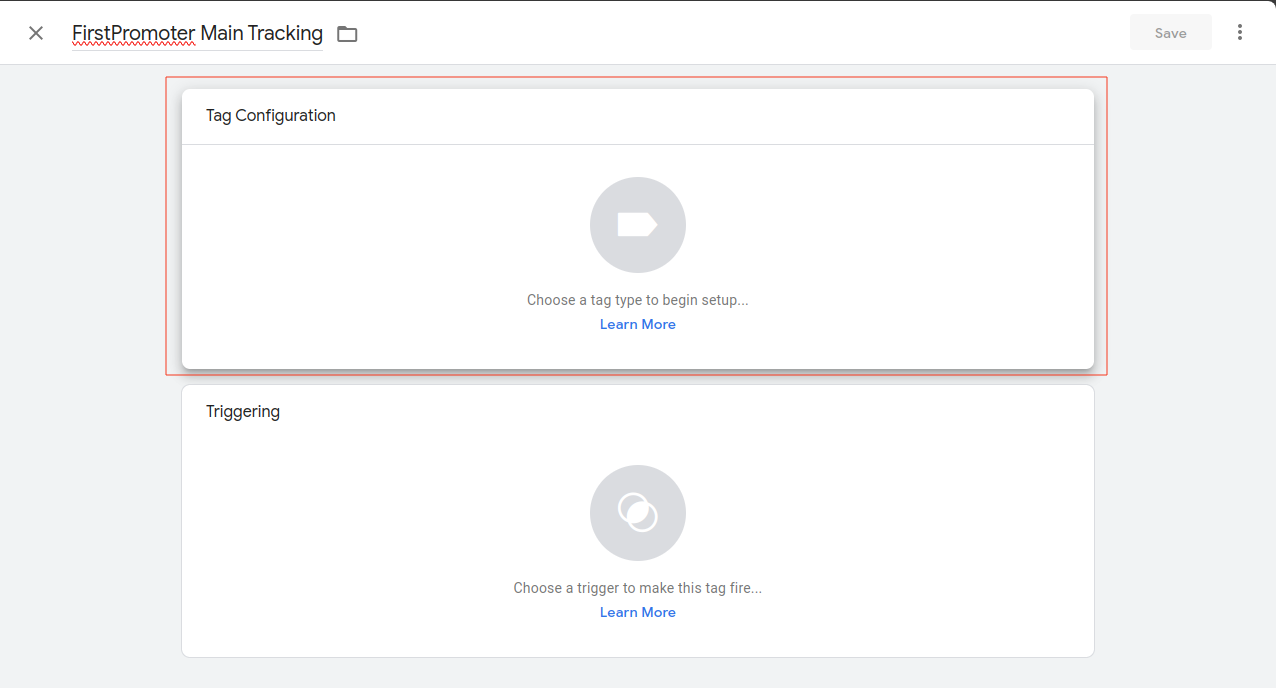
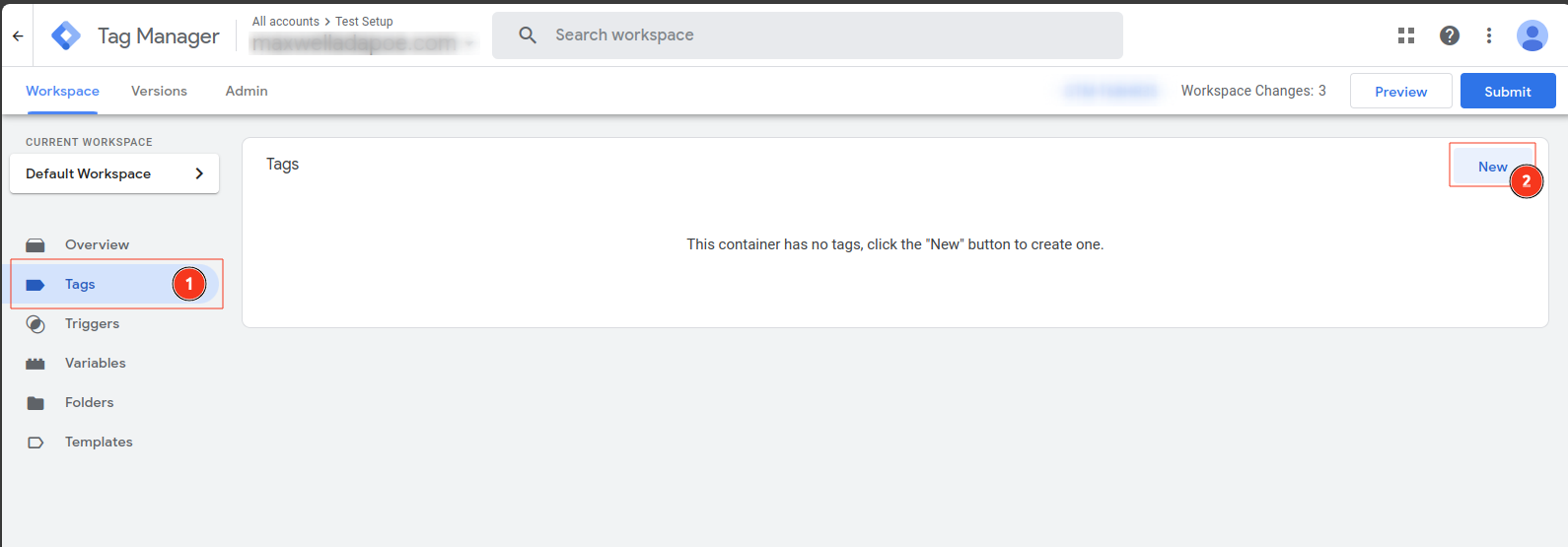 * Click on the `Tag configuration` panel to open the TAG type selection panel.
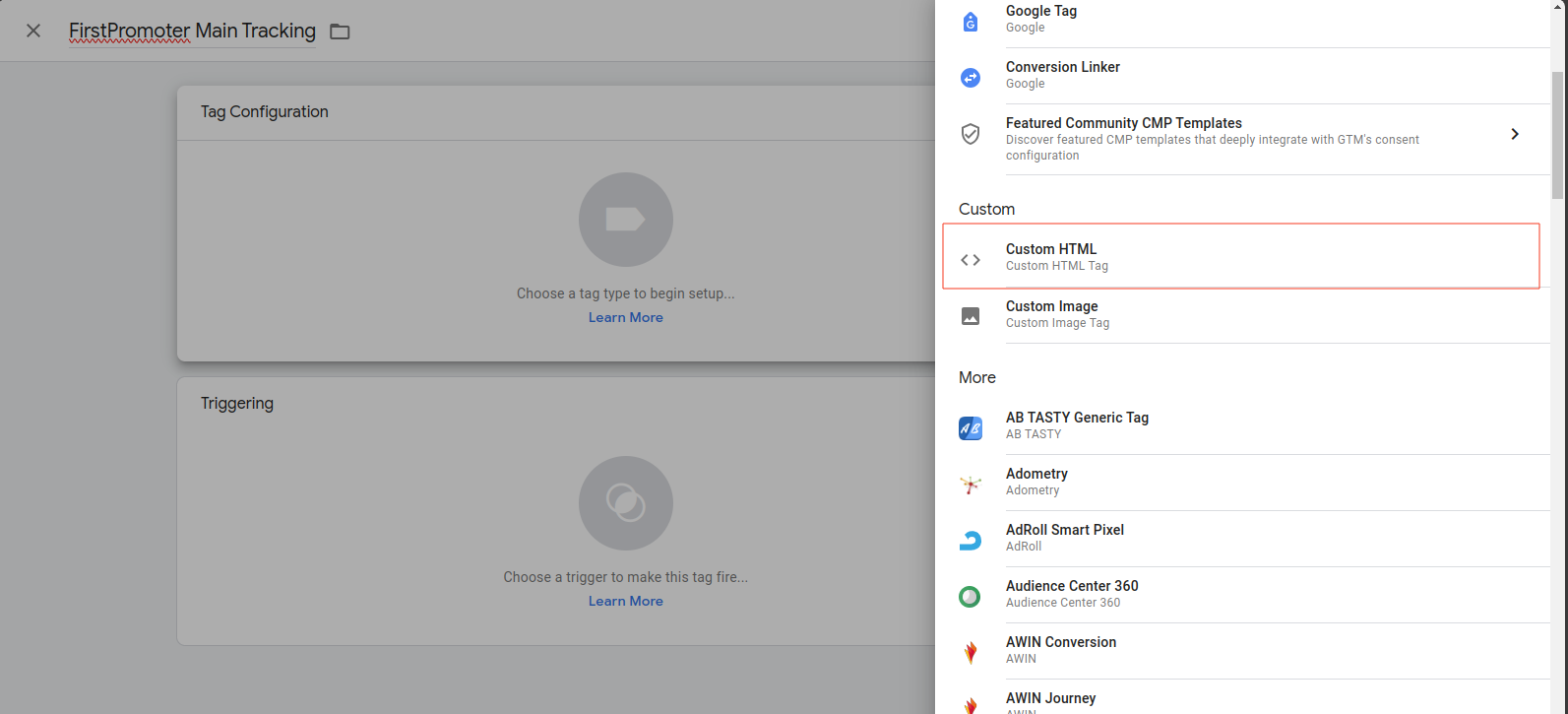
 * Scroll down and select the `Custom HTML` option
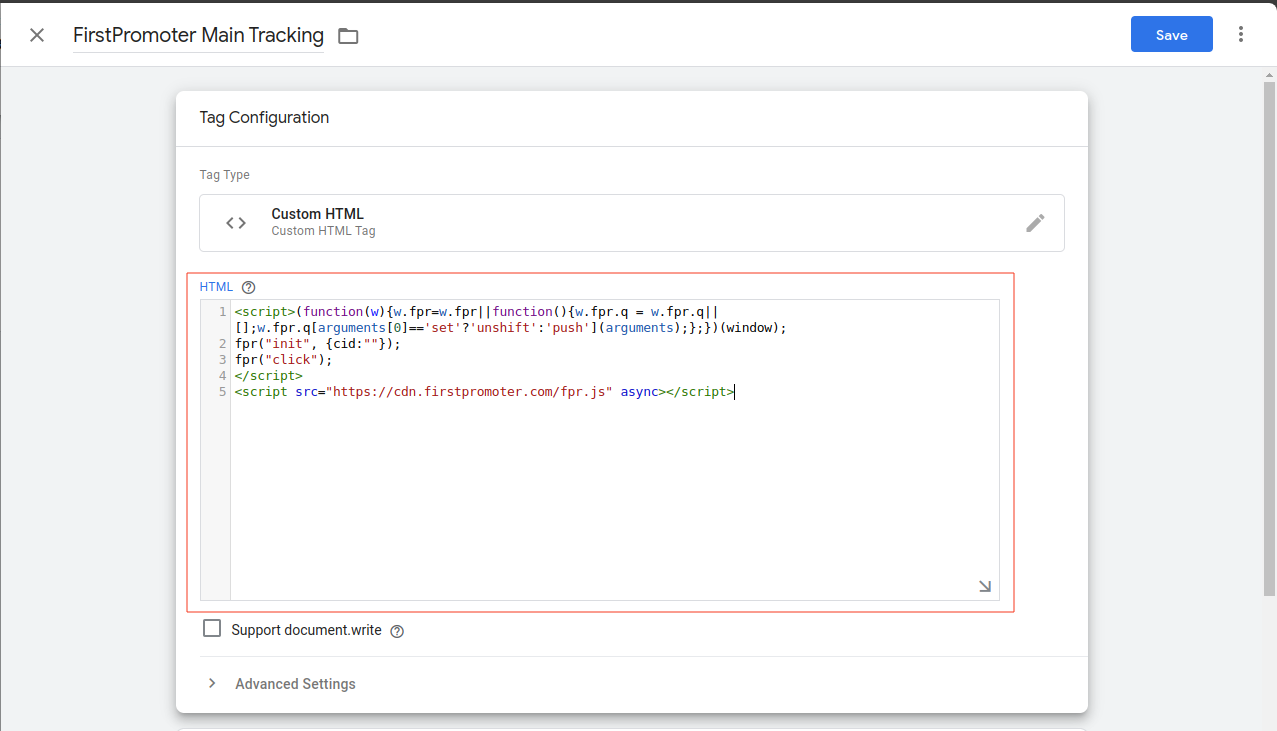
 * Add/paste the `Main tracking script` copied from FirstPromoter into the `HTML` Section. As shown in the screenshot below:
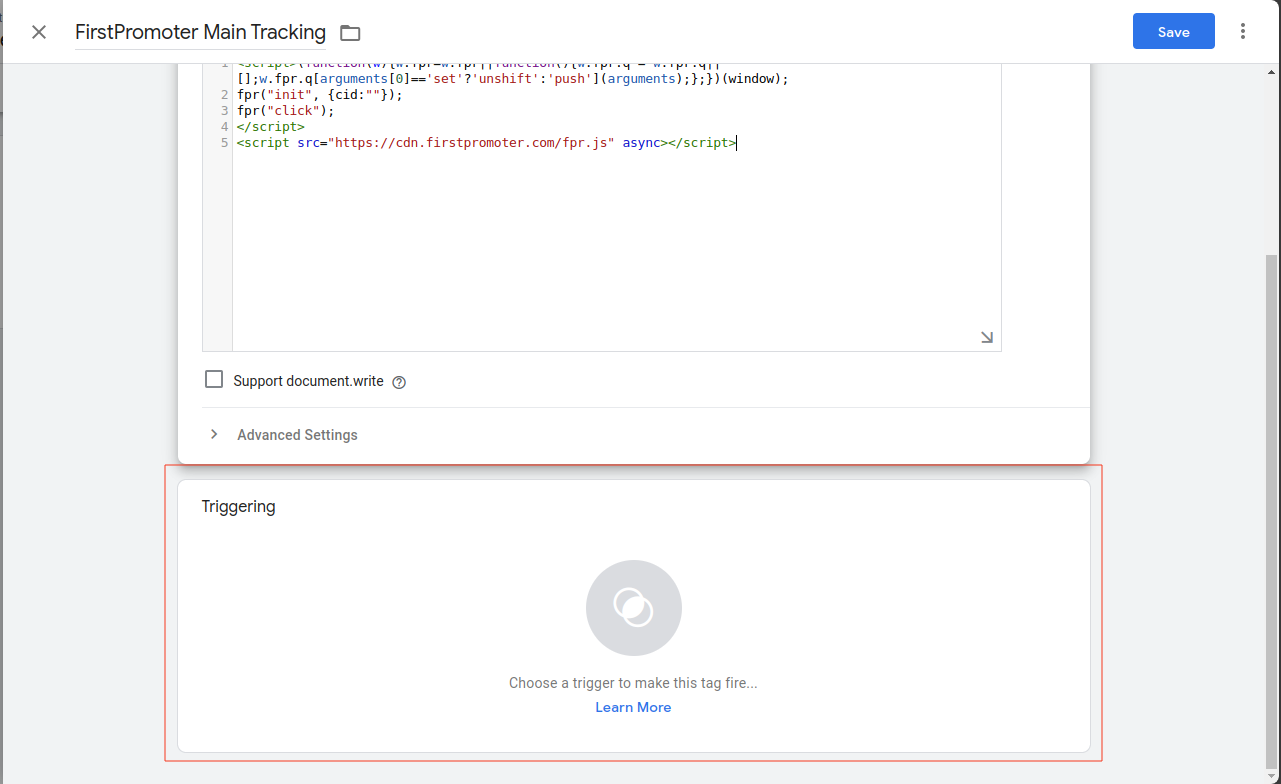
 * Now, you need to select when Google Tag Manager should trigger the script. To do this, scroll down to the `triggering` section, click on it and choose when to trigger the tag. We recommend selecting the `pages trigger` to load the `Main tracking script` on all your landing pages.
 * Rename/change the name to `FirstPromoter Main Tracking Script`
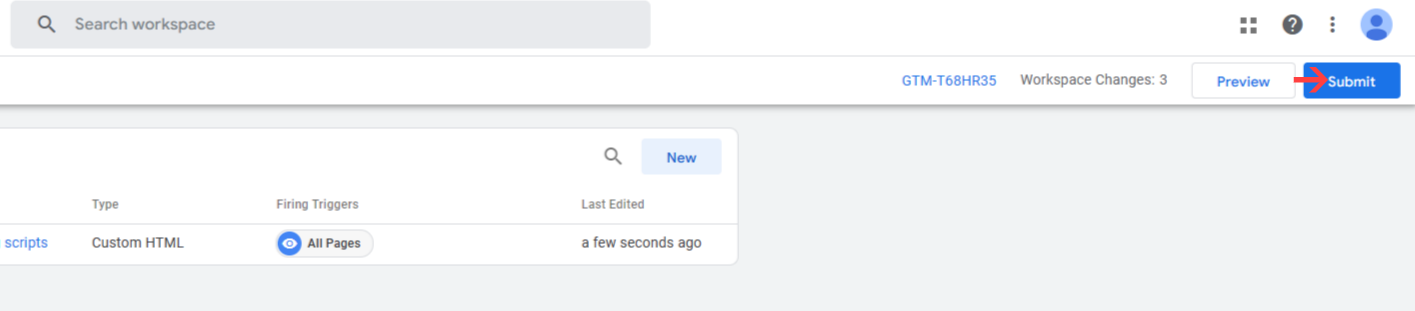
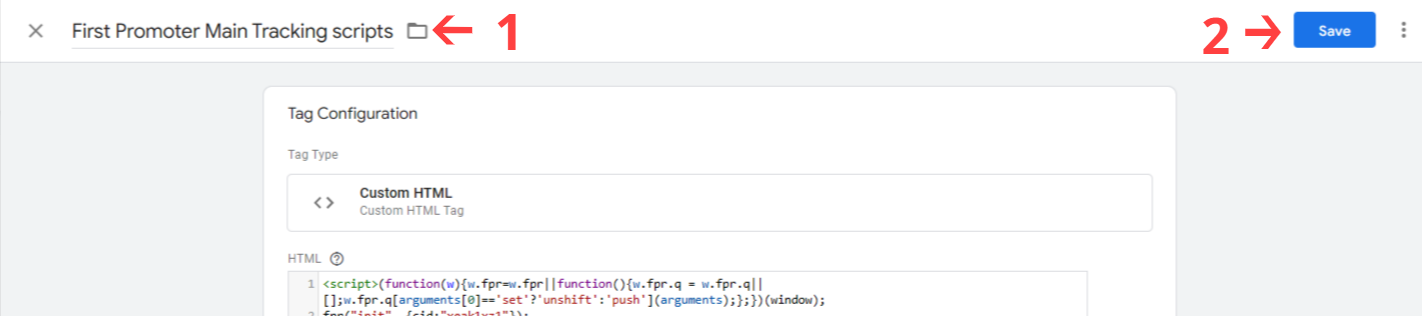 * Save and publish your changes.